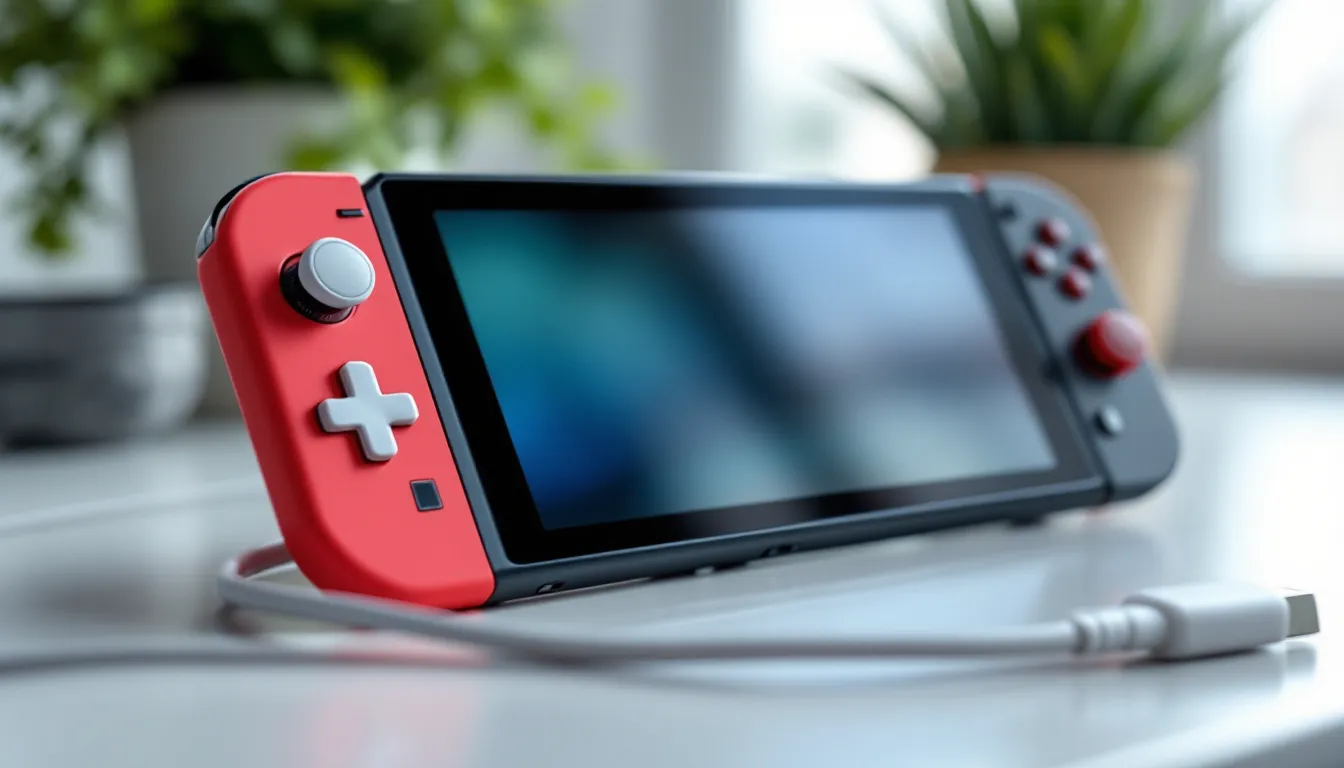
There’s nothing more frustrating than pressing the power button on your Nintendo Switch Lite and getting nothing, just a black screen staring back at you. Whether you’ve owned the console for years or just picked it up, a dead device throws a wrench in your gaming plans. The good news? Most power-on failures on the Switch Lite aren’t signs of catastrophic hardware damage. In many cases, it’s something simple: a depleted battery, a loose charging cable, a software hiccup, or debris in the USB-C port. This guide walks you through exactly what to check and how to fix your Switch Lite so you can get back to gaming.
Table of Contents
ToggleKey Takeaways
- A Nintendo Switch Lite won’t turn on most often due to a drained battery, faulty charging cable, or debris in the USB-C port—all easily fixable issues.
- Perform a hard reset by holding the power button for 15-20 seconds while plugged in, or try the 30-second hold method to wake a deeply discharged console.
- Clean the USB-C charging port with compressed air and inspect the cable for damage; faulty charging equipment causes many false “dead console” situations.
- If alternative chargers don’t work, leave your Switch Lite plugged in for 2-4 hours to allow a completely depleted battery to reach the safe power-on threshold.
- Water damage requires immediate air-drying for 24-48 hours before powering on; permanent corrosion may need professional Nintendo repair if fixes don’t work.
- Contact Nintendo Support or authorized service centers if all eight troubleshooting fixes fail, as warranty coverage typically includes manufacturing defects within one year.
Why Your Nintendo Switch Lite Won’t Power On
Before diving into fixes, it helps to understand what typically causes a Switch Lite to refuse power. Not every non-responsive console means the same thing, diagnosing the root cause makes the solution faster and more effective.
Battery Drain and Depletion
The most common culprit is a completely drained battery. If your Switch Lite hasn’t been charged in weeks or months, the battery may have depleted so far that the system doesn’t show any visual feedback when powered on. Lithium-ion batteries, which power the Switch Lite, can enter a deep discharge state where they need extended charging before responding. Even if the battery was draining normally, an unexpectedly long gaming session or leaving the console on standby for months could leave it completely empty. This is the “good news” scenario: it’s easily fixable with time and the right charger.
Charging Cable or Port Issues
Faulty charging equipment causes a surprising number of false “dead console” situations. The Switch Lite’s USB-C charging port is the gateway for power, and it’s surprisingly vulnerable. A bent or damaged charging cable, a port clogged with dust and debris, or a defective power adapter can all prevent charging. Over time, repeated plugging and unplugging stresses both the cable and port. Gamers who frequently move their console around, tossing it in a bag or car, put extra strain on the USB-C connector. Third-party chargers (especially cheap knockoffs) often fail silently, making it seem like the console won’t charge when really it’s the adapter.
Software Glitches and System Crashes
Sometimes the Switch Lite’s operating system crashes or enters an unresponsive state. This isn’t the same as the battery being dead, the console has power, but it’s stuck or frozen during boot. A failed system update, corrupted data, or a rare software bug can leave the console unresponsive even when plugged in. You might not see any lights, vibration, or signs of activity because the system is essentially frozen before the display powers on.
Hardware Failures
Less common but possible: actual hardware damage inside the console. This could be a failed power management chip, a broken power button (which won’t register your input), internal corrosion from water exposure, or component failure. Hardware issues are harder to fix at home and often require professional repair or replacement. Dropping the console, exposure to extreme temperatures, or liquid damage can all trigger hardware failures that look identical to power issues on the surface.
Quick Diagnostics: Check These First
Before attempting complicated fixes, run through these basic checks. Most power issues get resolved here.
Inspect the Charging Cable and Power Adapter
Look at your USB-C charging cable closely. Is it bent, frayed, or cracked? Shine a light on both ends: the USB-C connector (that fits into the console) and the USB connector (that goes into the power adapter). Check for bent pins, discoloration, or loose connections. Test the cable with another USB-C device if you have one, a phone or tablet with USB-C charging can tell you if the cable works. Examine the power adapter itself for burn marks, cracks, or a loose cord where it connects to the USB section. If the adapter feels unusually warm or cold, that’s a red flag. A faulty adapter won’t deliver power even if it looks fine from the outside.
Examine the USB-C Port for Debris or Damage
Grab a flashlight and peer into your Switch Lite’s USB-C port (located on the bottom of the device). Is there lint, dust, or debris visible inside? Gaming devices often accumulate pocket lint when stored in bags. Use a can of compressed air to gently blow out the port, don’t insert anything into it, as you could damage the delicate pins inside. Look for bent pins, corrosion (which might appear as white or greenish crust), or obvious damage. The port should be clean and have clearly visible metal pins.
Test with a Different Power Source
If you have access to another USB-C charger, plug it into your Switch Lite. Try a different power outlet too, sometimes outlets fail. If a different charger works, your original adapter is the problem. If multiple chargers don’t work, the port or console internals are likely the issue. This simple test eliminates a huge variable and points you toward the actual problem. You can also try a USB-C power bank (rated for at least 5V/1.5A) as a temporary test source.
Fix 1: Perform a Hard Reset
A hard reset forces your Switch Lite to shut down completely and restart, bypassing any frozen state. This works if the console is stuck in software but has battery power.
Steps:
- Connect your Switch Lite to power using a working charger.
- Leave it plugged in for at least 30 seconds, this ensures enough power is available for the reset.
- Press and hold the power button (on the top of the device) for 15-20 seconds continuously. Don’t release early.
- You should feel the console vibrate, and the screen might flicker briefly. This indicates the system is shutting down.
- Release the power button and wait 10 seconds.
- Press the power button once to turn it back on normally.
If the Switch Lite boots up and shows the Nintendo logo, congratulations, the hard reset worked. If it’s still unresponsive, move to the next fix. The key here is patience: hold that button long enough for the system to register the reset command, which requires more force than a normal power-on.
Fix 2: Try the Hold Power Button Method
This is a variation on the hard reset, specifically designed to “wake” a deeply sleeping console. A Switch Lite with critically low battery might not respond to a single button press.
Steps:
- Plug your Switch Lite into its charger immediately, don’t wait.
- Hold the power button down for a full 30 seconds without releasing. Count it out or use a timer.
- Continue holding even if nothing happens on the screen. The console might not show any lights or vibration initially.
- After 30 seconds, release the button.
- Wait 5-10 seconds, then press the power button normally to turn it on.
This method works because it triggers both a hard reset and gives the system extended time to respond. The extended button hold can sometimes kick the power supply circuit back into action. Many users report success with this method when the console appeared completely dead. The trick is resisting the urge to let go early, your instinct will say “it’s not working,” but the console needs the full 30 seconds to register the command.
Fix 3: Clean the USB-C Charging Port
Dust and debris accumulation is a silent killer for Switch Lite charging. Even tiny lint fibers prevent solid contact between the charger and the console’s power pins.
Steps:
- Unplug your Switch Lite from any charger.
- Use a can of compressed air to blow short bursts into the USB-C port. Hold the can upright and use the included straw to direct air into the port. Do 3-5 short blasts, not one continuous stream.
- If debris is visible but compressed air doesn’t dislodge it, use a wooden toothpick or soft plastic tool, never metal, to gently scrape the interior. Angle it along the sides of the port, not into the center where the pins are. Be extremely gentle.
- Alternatively, a dry cotton swab can remove debris from the port opening, though it won’t reach deep inside.
- Plug the charger back in and wait 5 minutes. Sometimes debris prevents charging even though the battery isn’t truly dead.
This fix alone has rescued countless “dead” Switch Lite consoles. It’s worth doing thoroughly because even if charging starts working, the cleaner the port, the better the power delivery. Avoid using a vacuum cleaner, the static electricity can damage electronics. Also skip metal tools like paper clips or needles: you could short-circuit the port or puncture delicate pins.
Fix 4: Use an Alternative Charger
Your original charger might be faulty. Testing with a different USB-C power source isolates whether the problem is the charger or the console.
Compatible Charger Options:
- Any USB Power Delivery (USB-PD) charger rated for at least 5V/1.5A or higher. Modern phone chargers work well.
- Nintendo’s official chargers for Switch, Switch OLED, or Switch Lite (all are compatible).
- Quality third-party USB-C chargers designed for gaming devices.
- A USB-C power bank with sufficient power output.
Steps:
- Locate a USB-C charger you know works (test it with a phone first if unsure).
- Plug it into your Switch Lite and wait 2-3 minutes. Sometimes a completely dead console takes time to register charging power.
- Look for visual indicators: a faint light near the USB port, vibration, or, if the battery had any charge left, the Nintendo logo appearing on screen.
- Let it charge for at least 30 minutes before attempting to power on.
If a different charger revives your console, your original adapter failed. If the alternative charger also doesn’t work, the issue is the console itself, either the USB-C port, the charging circuit, or the battery. According to resources like How-To Geek, testing with alternative hardware is one of the first steps in diagnosing power failures. This test takes 5 minutes and eliminates a major variable.
Fix 5: Leave Your Console Plugged In Longer
Patience is underrated. A completely depleted battery on a Switch Lite sometimes needs 2-4 hours of charging before the system has enough power to boot. Nintendo’s battery management circuit is conservative, it won’t allow the system to power on if the battery is below a certain threshold.
Steps:
- Plug your Switch Lite into a working charger (your original or an alternative you’ve confirmed works).
- Leave it plugged in and undisturbed for at least 2 hours. If you suspect deep battery discharge, give it 3-4 hours.
- Don’t attempt to power it on during this waiting period. Every button press might drain the small amount of charge that’s accumulating.
- After the waiting period, press the power button once (not held) and see if the console responds.
This is the “do nothing” fix, and it works surprisingly often. The psychological challenge is resisting the urge to keep checking on it. Once you leave it plugged in for 2+ hours, most deeply discharged Switch Lite units will boot up without issue. The charging circuit is actively working: you’re just waiting for battery capacity to cross the “safe to power on” threshold. Many players have reported this simple trick saving their console from what they thought was catastrophic failure.
Fix 6: Force a Shutdown and Restart Cycle
If your Switch Lite is plugged in but frozen on a black screen, it might be stuck in a boot loop or partial power state. This fix combines extended charging with a controlled restart sequence.
Steps:
- Plug your console into power for 30 minutes without touching it.
- Press and hold the power button for 20 seconds (like Fix #1).
- Release and wait 10 seconds.
- While still plugged in, press the power button for 15 seconds again.
- Release and wait another 10 seconds.
- Finally, press and hold the power button one more time for 20 seconds.
- After the third attempt, disconnect the charger and wait 5 minutes.
- Reconnect the charger and press power once to turn on normally.
This multi-cycle approach exhausts the possible stuck states. You’re essentially forcing multiple shutdown attempts, which increases the chances of breaking the console out of a software freeze. The theory: one of these power button holds will register correctly and shut down the system entirely, allowing a fresh boot. If the Switch Lite responds after step 8, the system was likely frozen in software, not hardware. This takes about 45 minutes total, but it’s less intrusive than taking the console apart.
Fix 7: Check for Water Damage
If your Switch Lite has been exposed to water, even briefly, liquid damage could explain power failure. Water causes corrosion inside the device, blocking power delivery even if the battery is fine.
Visual Inspection:
- Look for signs of water exposure: discoloration on the circuit board visible through the charging port, white or greenish corrosion inside the USB-C port, or a musty smell when you bring it close to your ear.
- Check the screen edges for condensation or cloudiness, which indicates internal moisture.
- Look for liquid in the battery cavity if you ever opened the device (consult repair guides if you’re confident doing this).
If You Suspect Water Damage:
- Do not charge it immediately. Connecting power to a wet device causes short circuits.
- Let it air dry completely in a warm, dry room (65-75°F) for 24-48 hours. Some people place the console in uncooked rice or a dehumidifier, though effectiveness varies.
- After drying, attempt to charge and power on. If it works, you got lucky.
- If it still won’t power on after drying, water likely caused permanent damage to internal components, and professional repair is needed.
Water damage is one of the few power issues that passive fixes can’t resolve. Professional repair shops can disassemble the console, clean corrosion, and replace damaged components, but this costs money and time. If your console fell in water, act quickly: dry it immediately and resist the urge to test it by plugging it in. You might save it with patience.
Fix 8: Reset the Power Supply Circuit
This advanced fix targets the power management IC (integrated circuit) inside your console, which controls charging and power delivery. It’s more technical than the previous fixes but doesn’t require opening the device.
Steps:
- Unplug your Switch Lite from any charger.
- Let it sit unplugged for at least 5 minutes. This allows any residual charge in the power circuitry to dissipate completely.
- Press and hold the power button for 30 seconds while the device is unplugged. This grounds any remaining electrical charge in the system. Don’t worry that nothing happens, the goal is to drain the circuit.
- Release the button and wait another 5 minutes.
- Reconnect the charger and leave it plugged in for 10 minutes without attempting to power on.
- Press the power button to turn on.
This works because the power management circuit sometimes enters a stuck state where it won’t deliver power properly. By fully discharging and resetting the circuit, you give it a chance to reinitialize correctly. It’s a gentler alternative to opening the device or applying more extreme measures. The extended waiting periods are important, they ensure complete discharge. Resources like TechRadar recommend this reset procedure for stuck power circuits in various portable gaming devices.
When to Contact Nintendo Support
If you’ve worked through all eight fixes and your Switch Lite still won’t power on, it’s time to accept that hardware repair is needed. Nintendo provides warranty coverage and repair services for exactly these situations.
Warranty and Repair Options
Nintendo’s standard limited warranty covers hardware defects for one year from purchase. Power failures caused by manufacturing defects, as opposed to accidental damage or liquid exposure, are typically covered. Check your console’s serial number and proof of purchase to verify warranty status. If your Switch Lite is still under warranty, Nintendo will repair or replace it at no cost (excluding shipping, which may be free depending on your region).
If your console is out of warranty, Nintendo offers paid repair services. Costs vary by region and damage type but typically range from $60-$120 USD. Repair turnaround is usually 5-10 business days plus shipping time. Out-of-warranty repairs are more expensive than some newer console purchases, so factor that into your decision.
Authorized Service Centers
Instead of contacting Nintendo directly, you can use authorized service centers in your region. These independent repair shops are certified by Nintendo and can perform the same repairs as Nintendo’s official service, often faster. Search “Nintendo authorized repair” plus your city or region to find nearby options. They can sometimes diagnose the issue on-site and provide a same-day or next-day turnaround for simple fixes.
Before contacting support, gather:
- Your console’s serial number (printed on the back of the device).
- Proof of purchase (receipt, order confirmation, or credit card statement).
- A clear explanation of what you’ve already tried (this helps technicians diagnose faster).
You can reach Nintendo Support through their official website, phone, or social media. Having a detailed repair history (what fixes you attempted) actually speeds up the process because technicians know exactly what to rule out.
Prevention Tips to Avoid Future Power Issues
Once you’ve revived your Switch Lite, protect it from future power problems. Most failures are preventable with basic care.
Proper Charging Practices
Use official chargers when possible. While third-party USB-C chargers work, Nintendo’s official adapters are engineered specifically for the Switch Lite. If you must use a third-party charger, buy from reputable brands with good reviews, not cheap knockoffs.
Avoid repeatedly yanking the charging cable out. Each removal stresses the USB-C connector. Develop a habit of gently removing the cable, wiggle it slightly side-to-side before pulling straight out.
Don’t leave your console charging overnight repeatedly. Overcharging stresses lithium-ion batteries. Once your Switch Lite hits 100%, unplug it. If you charge nightly, do it for 2-3 hours, then disconnect.
Charge in cool environments. Heat degrades batteries and electronics. Avoid charging near windows in direct sunlight or on hot surfaces. A cool room (65-75°F) is ideal.
Storage and Environmental Care
Store your Switch Lite in a cool, dry place. Don’t leave it in a hot car, humid bathroom, or near water sources. Extreme temperatures damage batteries and solder joints.
Keep the USB-C port covered. Use a protective case with a port guard, or at least store the console in a pocket-free environment. Lint and dust are the silent enemies of charging ports. Checking for lint and cleaning periodically (once per month) takes 30 seconds and prevents 90% of port-related failures.
Charge at least once per month if the console isn’t in use. Lithium-ion batteries self-discharge over time. Letting a Switch Lite sit uncharged for 6+ months can cause deep discharge, making revival difficult. A quick charge once monthly maintains battery health.
Regular Maintenance Routines
Inspect your charging cable monthly. Look for cracks, fraying, or exposed wires. If you see damage, replace it immediately. A broken cable is a short-circuit waiting to happen.
Clean the USB-C port quarterly. Use compressed air to blow out dust. This takes 1 minute and prevents the lint-clogging issue that causes most charging failures.
Power cycle your console monthly. Shut down completely and restart (not sleep mode). This keeps the operating system fresh and clears any lingering software glitches.
Update your console when prompted. Nintendo releases system updates that often include power management and battery optimization improvements. Don’t ignore these notifications. Also, exploring Nintendo Switch Tips: Get More From Your Console can help you leverage maintenance features built into your system.
Conclusion
A dead Switch Lite is stressful, but it’s rarely a death sentence. Nine times out of ten, one of these eight fixes revives your console without professional help. Start simple, clean the charging port, try a different charger, and leave it plugged in for 2-4 hours. The hard reset and power button holds take just minutes and can solve frozen systems instantly.
If those don’t work, move to the more involved solutions like the power supply reset and water damage assessment. Keep detailed notes of what you try: this information helps Nintendo technicians enormously if you eventually need professional repair.
Most importantly, remember that consistent maintenance prevents these failures entirely. A monthly port cleaning and quarterly charger inspection go a long way. Treat the charging cable gently, avoid extreme temperatures, and you’ll keep your Switch Lite running for years.
The gaming community is resilient, countless players have brought their consoles back from the brink using these exact methods. Your Switch Lite can bounce back too. Whether you’re tackling how to use a Nintendo Switch properly for the first time or you’re a veteran player dealing with hardware quirks, the fixes in this guide cover the vast majority of power-on failures. Stay patient, follow the steps in order, and you’ll be back to gaming soon.