Your Nintendo Switch Lite has been a reliable portable gaming companion, but nothing lasts forever, especially the battery. After a couple of years of grinding through Pokémon, Animal Crossing, or whatever your go-to title is, you might notice the battery draining faster than it used to. A degraded battery can tank your gaming sessions, cutting them short when you’re in the middle of something important. The good news: replacing a Nintendo Switch Lite battery is entirely doable, whether you’re confident enough to open up the device yourself or prefer to hand it off to professionals. This guide breaks down everything you need to know, from spotting the warning signs to choosing between DIY and professional repairs.
Table of Contents
ToggleKey Takeaways
- Nintendo Switch Lite battery replacement is achievable through DIY repair (costing $30–$55 and taking 45 minutes) or professional service (costing $40–$75 with official warranty coverage).
- Warning signs your battery needs replacement include playtime dropping from 5.5–9 hours to 2–3 hours, slow charging times, unexpected shutdowns, and physical swelling—with the last symptom requiring immediate attention.
- Most Switch Lite owners start experiencing battery degradation around the 2–3 year mark due to the battery’s designed lifespan of roughly 1,000 charge cycles.
- Purchasing the correct replacement battery (HAC-003 model with 3,570 mAh capacity) from reputable retailers prevents counterfeits and ensures compatibility, with legitimate batteries costing $15–$35.
- Optimal charging habits—charging at 15–20% battery, avoiding overnight trickle charging, and disabling WiFi during offline play—can extend your replacement battery lifespan by 12–18 months.
Why Your Nintendo Switch Lite Battery Needs Replacement
The Nintendo Switch Lite’s battery isn’t meant to last forever. Like all rechargeable lithium-ion batteries, it degrades with every charge cycle. Understanding when and why replacement becomes necessary helps you make the right call, whether it’s time to act now or wait a bit longer.
Signs Your Battery Is Dying
Your Switch Lite’s battery starts showing age in pretty obvious ways. The most noticeable sign is that your playtime drops significantly. A healthy Switch Lite handles 5.5 to 9 hours of gameplay on a single charge depending on the game and settings. When your sessions consistently end after 2-3 hours, that’s your first red flag.
Other warning signs include:
• Rapid drain during standby: The device loses 5-10% battery even when you’re not actively playing
• Slow charging times: What used to take 3-4 hours now stretches to 6+ hours
• Unexpected shutdowns: The device powers off even when the battery indicator shows 20-30% remaining
• Battery not detected errors: Your Switch Lite occasionally fails to recognize the battery
• Swelling or physical distortion: The device feels slightly puffed or the casing sits unevenly, this is urgent and requires immediate replacement
• Heat during charging or gaming: Abnormal warmth suggests internal battery stress
If you’re experiencing one or two of these symptoms, your battery’s days are numbered. If you’re experiencing swelling, stop using the device immediately and pursue replacement right away.
Battery Lifespan and Degradation Timeline
Nintendo designed the Switch Lite’s battery for roughly 1,000 charge cycles before you’d notice significant degradation. That sounds like a lot until you do the math: if you charge your Switch Lite every day, you’re hitting that threshold in just under three years. Heavy gamers who charge multiple times daily reach it faster.
In practical terms, most Switch Lite owners start noticing real battery problems around the 2-3 year mark. By year 4-5, replacement becomes less of an “eventually” situation and more of a “definitely now” situation. The exact timeline depends on your charging habits, treating the battery well extends its lifespan, while letting it completely drain regularly accelerates degradation.
Most users replacing their Switch Lite battery are doing it somewhere between 2.5 and 4 years into ownership. If you’re hitting that window, replacement is worth considering even if the symptoms are mild. Better to swap the battery on your schedule than have it fail mid-game at a tournament or during a vacation.
What You Need to Know Before Starting
Before you crack open your Switch Lite or schedule a repair appointment, there are some crucial factors to consider. Understanding warranty implications, gathering the right tools, and recognizing the risks helps you make an well-informed choice.
Warranty and Service Considerations
Here’s the reality: opening your Switch Lite yourself voids Nintendo’s warranty immediately. If your device is still under the original one-year limited warranty, pursuing professional repair through Nintendo keeps that coverage intact. For devices outside the warranty period, this concern disappears.
Nintendo’s official repair service costs around $55-$75 depending on your region and whether they need to service additional issues. This is a straightforward option if your device is relatively new or you want the peace of mind of official support. Response times typically range from 1-2 weeks depending on demand.
Third-party authorized repair centers often charge $40-$60 and sometimes complete repairs faster, sometimes same-day depending on stock. But, you’ll want to verify they’re actually authorized by Nintendo to avoid warranty issues and ensure they’re using quality components.
Tools and Materials Required
If you’re going the DIY route, you need specific tools. Improvising with household items is how people accidentally damage their devices. Here’s the exact list:
• Y00 Tri-point screwdriver (not a standard Phillips, this one’s critical)
• Plastic pry tools or spudgers (at least 2-3 for leverage without metal scratches)
• Small Phillips screwdriver (for internal screws)
• Anti-static wrist strap (protects from electrostatic discharge damaging components)
• Tweezers (for managing tiny connectors)
• Replacement battery (we’ll cover which one to buy in a later section)
• Adhesive strips or tape (to hold the housing together during reassembly)
• Clean workspace with good lighting
You can grab a toolkit specifically designed for Switch Lite repairs on Amazon or from gaming accessory retailers for $15-$25. It’s better to buy a complete kit than to improvise, especially for the Y00 Tri-point screwdriver, using the wrong screwdriver strips the screws and makes the job impossible.
Safety Precautions and Risk Assessment
Let’s be straight: opening your Switch Lite carries real risks if you’re not careful. The device contains delicate ribbon cables, small electronic components, and battery connectors that are easy to damage. Broken ribbon cables mean your device won’t power on or recognize input. A punctured battery can cause fire or chemical burns.
Wear the anti-static wrist strap, it’s not just for show. Static electricity can fry internal components silently, and you won’t realize until you power it on and nothing works. Work on a non-carpeted surface if possible, and avoid working in humid conditions.
Be extremely gentle with ribbon cables. They don’t require much force to disconnect or break, and replacing them is expensive and difficult. Take photos during disassembly so you know exactly where every component goes during reassembly.
If you’re uncomfortable with precision electronics work, this is a legitimate reason to choose professional service. There’s no shame in letting someone with experience handle it, a botched DIY repair costs way more than professional service in the first place.
DIY Battery Replacement: Step-by-Step Instructions
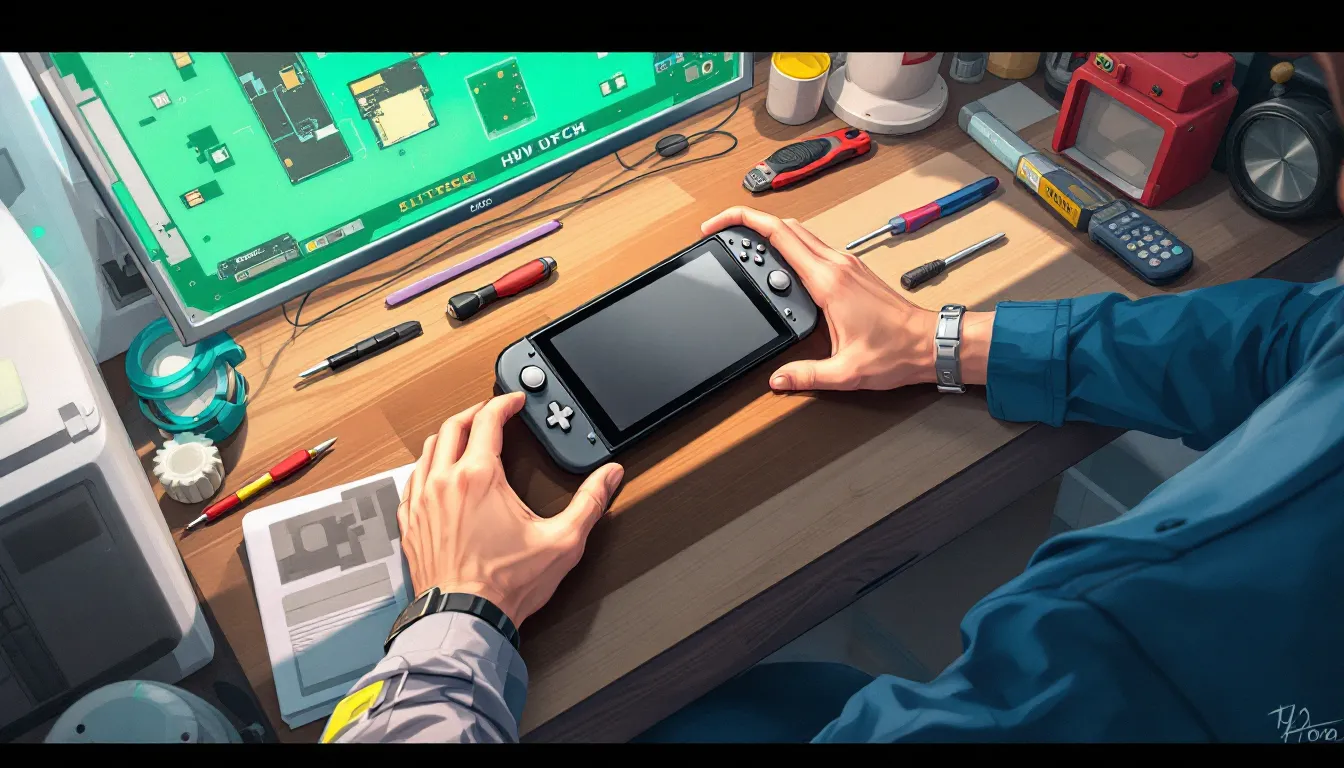
If you’ve decided to tackle this yourself and have your tools ready, here’s the process. Take your time, rushing is how mistakes happen. This typically takes 45 minutes to an hour if you’re moving deliberately.
Preparing Your Device and Workspace
First, completely power down your Switch Lite. Don’t just put it in sleep mode, actually shut it down from the home screen. Let it sit for 10-15 minutes so any residual charge dissipates.
Set up your workspace with good lighting (a desk lamp directly overhead is ideal). Lay down a soft cloth or mat to prevent the device from sliding around. Organize your tools within arm’s reach so you’re not fumbling or looking for things mid-process. Open a browser window with a disassembly guide or video open for reference, having a second screen makes this infinitely easier.
Wear your anti-static wrist strap and clip it to a grounded metal object (a radiator works, or any unpainted metal part of your workspace setup). This might seem paranoid, but electrostatic damage is silent and permanent.
Opening the Nintendo Switch Lite Housing
Flip your Switch Lite over so the back is facing up. You’ll see five screws holding the back plastic on, they’re tiny and easy to miss. Remove all five using your Y00 Tri-point screwdriver. This is critical: use the correct screwdriver size. If the fit feels wrong, stop and get the right one. Stripping these screws makes the job significantly harder.
Place the screws somewhere safe (a small container or piece of tape works). Once the screws are out, use a plastic pry tool to carefully lift the back housing. Start at one corner and work your way around, there’s adhesive holding it, so be patient. You’ll feel it pop loose. Don’t force it or you’ll crack the plastic.
With the back off, you’ll see the battery right in front of you, it’s a rectangular module about the size of a standard battery in a remote. You’ll also see several ribbon cables connecting the board, the screen, and other components. Don’t touch these unnecessarily.
Disconnecting and Removing the Old Battery
Before you physically remove the battery, you need to disconnect it from the motherboard. There’s a small connector with a pull-tab that you’ll gently tug straight away from the board. This disconnects power to the battery. If you don’t do this and you accidentally short anything during removal, you risk serious damage.
Once disconnected, you’ll see the battery is held down with adhesive strips. Use a plastic tool to gently pry at the edges. Work slowly and don’t puncture the battery itself, if you do, stop immediately and let it sit (don’t touch it) for 30 minutes while it discharges any remaining charge.
The battery should come free after a minute or two of gentle prying. Remove it completely and set it aside. This old battery should be recycled properly, don’t throw it in the trash. Most electronic retailers have battery recycling programs, and you can check your local e-waste disposal options.
Before installing the new battery, clean the adhesive residue from the inside of the housing using a plastic tool or your fingernail. Old adhesive prevents the new battery from sitting flush.
Installing the New Battery and Reassembling
Take your new replacement battery and carefully position it in the same spot where the old one sat. The connector should face toward the motherboard. Press it gently into place so it’s snug but not forced.
Connect the battery’s power connector back to the motherboard by sliding it straight in until you hear a small click. This is the opposite of what you did during removal, gentle and deliberate.
Now comes reassembly. This is where taking photos during disassembly pays off. Make sure all ribbon cables are in their original positions and the back housing has no obstructions. Line up the back housing carefully, the screw holes need to align, and the plastic needs to sit evenly without gaps.
Push the housing down gently until you feel it click into place. Now install the five screws back in using your Y00 Tri-point screwdriver. Use light pressure, you’ll feel when the screw is snug. Don’t overtighten.
Leave the device off for five minutes. Then power it on. You should see the Nintendo logo, and the system should boot normally. Check the battery indicator in the settings menu, it should show a healthy percentage.
Professional Battery Replacement Options
Not everyone wants to DIY a repair, and that’s completely valid. Professional options exist at different price points and speed levels, each with trade-offs.
Nintendo Official Repair Service
Sending your Switch Lite to Nintendo is the safest path if you want official support. You can initiate a repair through Nintendo’s website by selecting your device and the issue (battery). Nintendo will provide you with a prepaid shipping label, and you mail the device directly to them.
Turnaround time is typically 1-2 weeks, though it can extend during high-volume periods. Nintendo charges $55-$75 for battery replacement, and sometimes they’ll identify and fix additional issues at no charge if discovered during inspection. They also give you a 90-day warranty on the repair itself.
The downside: you’re without your Switch Lite for 2-3 weeks depending on shipping. If gaming portability is important to you, plan ahead. During peak seasons (holiday months, new game launches), wait times can extend to 3+ weeks.
Authorized Third-Party Repair Centers
Nintendo has authorized several third-party repair chains to handle Switch repairs officially. These are places like uBreakiFix and similar certified retailers. They’re held to Nintendo’s quality standards and use approved components.
Costs are typically $40-$60, so you’re saving money compared to Nintendo direct. More importantly, many offer same-day or next-day repair service. If you have a local authorized center, you can drop your device off in the morning and pick it up that evening. This is a massive convenience factor.
To find an authorized center near you, check Nintendo’s official repair partner list on their support website. Not all third-party repair shops are authorized, verify before you commit. Unauthorized shops might use cheaper components or lack proper warranties.
Cost Comparison: DIY vs. Professional Services
Let’s break down the actual costs:
DIY Route:
• Replacement battery: $15-$30
• Toolkit (if you don’t have tools): $15-$25
• Total: $30-$55
• Time investment: 45 minutes to 1 hour
• Risk: Device damage if something goes wrong: no warranty on repairs
Nintendo Official Service:
• Repair cost: $55-$75
• Shipping: Free (prepaid label)
• Turnaround: 1-2 weeks
• Warranty: 90 days on repair
• Time investment: Packaging and shipping time
Authorized Third-Party (e.g., uBreakiFix):
• Repair cost: $40-$60
• Travel time: Drive to and from location
• Turnaround: Same-day to next-day (usually)
• Warranty: Varies by location, typically 30-90 days
If you’re confident in your technical skills, DIY saves money and time. If you’re cautious or value the peace of mind of a warranty, professional service costs an extra $10-$45 but removes all risk. Third-party authorized centers offer the sweet spot for most people: fast turnaround, reasonable cost, and official backing.
According to resources like How-To Geek, consumers choosing professional service for electronics repairs consistently cite peace of mind and warranty coverage as the deciding factors, even when it costs more upfront.
Choosing the Right Replacement Battery
Not all replacement batteries are created equal. Buying the wrong one wastes money and potentially damages your Switch Lite. Here’s what matters.
OEM vs. Third-Party Battery Options
OEM (Original Equipment Manufacturer) batteries are the gold standard. These are the exact batteries Nintendo uses in new Switch Lite devices. They’re manufactured to Nintendo’s specifications and quality standards. If you go through Nintendo for repair, they use OEM batteries. These typically cost $25-$35 if you buy them separately.
Third-party batteries are manufactured by companies other than Nintendo, often to save costs. Some third-party batteries are genuinely high-quality, manufactured to the same standards as OEM. Others are cheap knockoffs that fail quickly or damage your device. The challenge is telling the difference.
Where you buy matters enormously. Reputable retailers like Amazon, Best Buy, or specialized gaming retailers carefully vet their suppliers. Sketchy marketplaces or unknown sellers are where counterfeit batteries hide. I’d recommend sticking with batteries from established electronics retailers or verified sellers.
Here’s a practical rule: if the price seems suspiciously cheap (under $12), it’s probably a counterfeit. Real batteries cost $15+. Yes, spending an extra $10-$15 sucks, but a bad battery can damage your motherboard, which costs $200+ to replace.
Capacity, Compatibility, and Quality Standards
The Nintendo Switch Lite’s official battery is model HAC-003. This is the number you need to match. The battery has a 3,570 mAh capacity and 3.7V nominal voltage. Any replacement you buy should list these exact specs.
When shopping, look for these quality indicators:
• Manufacturer certification: Real batteries list the manufacturer (usually on a label). Unknown manufacturers are a red flag
• Batch codes: The battery should have a printed batch code matching other specs on the label
• Listing details: The Amazon or retail listing should clearly state “HAC-003” and mention Switch Lite compatibility specifically
• Reviews from verified buyers: If you’re buying online, check reviews. Counterfeit batteries get complaints like “battery doesn’t last” or “won’t charge” from verified purchasers
• Return policy: Reputable sellers offer returns if the battery is defective
Unfortunately, counterfeit electronics are rampant online. TechRadar’s hardware reviews frequently cover counterfeit electronics as a consumer concern, and replacement batteries are common targets. Buy from established retailers whenever possible.
One more note: avoid batteries that seem oversized compared to the original. Some third-party options claim higher capacity (4,000+ mAh) but may not fit properly in the device or draw too much current. Stick with batteries matching the original specifications unless you’re absolutely certain of the source.
Troubleshooting Common Issues After Replacement
You’ve replaced the battery (DIY or professional), powered on the device, and… something’s not right. Here are the most common issues and how to fix them.
Device Not Powering On or Charging Slowly
If your Switch Lite won’t turn on after battery replacement, the most likely culprit is a loose battery connector. Before panicking, power off the device (if it’s on), and then hold the power button for 30 seconds. This performs a hard reset. Try powering on again. Sometimes the device just needs to recalibrate.
If that doesn’t work and you did the DIY replacement, you likely have a connection issue. The battery connector might not be fully seated. Power off immediately, open the device again (I know, annoying), and reseat the battery connector by disconnecting and reconnecting it firmly. Make sure you hear the click.
Charging slowly after replacement is usually also a connector issue or occasionally a defective new battery. Check that the connector is fully seated. Try charging with a different power adapter if you have one available, sometimes adapters fail, not batteries.
If the device charges extremely slowly (taking 8+ hours) and the connector is definitely seated, you may have a defective replacement battery. Professional service batteries come with a warranty for exactly this reason. If you did DIY with a third-party battery, contact the seller about a return or warranty claim.
Battery Overheating or Performance Problems
The device heating up noticeably during charging or gaming is abnormal and should be taken seriously. This usually means:
• Wrong battery type: A mismatched battery drawing excessive current causes heat. Verify you installed the correct model (HAC-003)
• Connector damaged or loose: A bad connection creates electrical resistance and heat. Reseat the connector
• Defective battery: The new battery itself is faulty. This is rare with legitimate batteries but happens with counterfeits
Stop using the device immediately if you notice significant heat. Let it cool for 30 minutes before diagnosing further. Never force continued use of an overheating device, you risk damaging the motherboard or worse.
Performance problems (stuttering, freezing, sudden crashes) after battery replacement are uncommon. If you’re experiencing these alongside normal battery function (correct charging speed, healthy battery percentage), the issue is probably unrelated to the battery. But, if these problems started immediately after replacement and you did the DIY procedure, you may have accidentally damaged a ribbon cable or component during disassembly. In that case, professional repair is your only real option.
Check Nintendo Life for community discussions if you’re facing unusual post-replacement issues. Gaming communities often troubleshoot these problems together and can help isolate whether the issue is battery-related or something else entirely.
Maximizing Battery Life: Tips to Avoid Future Replacements
You’ve gone through battery replacement (or decided against it for now). Time to make this new battery last as long as possible. Smart charging and usage habits can extend your battery lifespan by 12-18 months.
Optimal Charging Habits
Avoid letting the battery fully drain completely. Lithium-ion batteries degrade faster when fully discharged. Ideally, you’re charging when the battery hits 15-20%, not letting it drop to 1%. If you’re playing away from power for extended periods, that’s fine, just don’t make it a habit.
Don’t charge overnight constantly. If you’re leaving your Switch Lite plugged in from 11 PM to 8 AM every night, you’re putting stress on the battery. Trickle charging (where the device is already fully charged but stays plugged in) generates heat and accelerates degradation. Charge, then unplug. Your device doesn’t need to be always topped up.
Use the official Nintendo charger or a certified third-party charger. Cheap off-brand chargers can deliver unstable power, damaging the battery or charging circuitry. If you lost your original charger, look for chargers specifically certified for Switch Lite rather than generic USB-C chargers.
Avoid heat during charging. Don’t charge your Switch Lite while it’s in direct sunlight or on soft surfaces (beds, couches) where heat builds up. Cool environments are better for battery health. Charge on a desk with good airflow.
One practical approach: charge to 80% during normal play, and only charge to 100% if you’re about to leave the house. This single habit extends battery lifespan noticeably.
Settings and Usage Adjustments
Your Switch Lite’s settings let you extend battery life significantly between charges. Here’s what to adjust:
Enable Auto-Brightness Reduction: Go to System Settings > Screen and turn on auto-brightness. The screen is your biggest power drain, and letting the system adjust brightness based on ambient light saves a ton of power without noticing the difference during play.
Lower screen brightness manually: In the same menu, you can manually reduce brightness. Most games remain perfectly playable at 60-70% brightness instead of maximum. This isn’t just saving battery, it reduces eye strain during long sessions.
Disable WiFi when not needed: Connected WiFi searches for networks periodically, draining power. If you’re just playing offline games like Pokémon or Zelda, turn WiFi off. Turn it back on when you need eShop access or online play.
Close background apps: From the home screen, press X on an active game and close it properly rather than leaving it in sleep mode. Games running in the background drain battery even when you’re not actively playing.
Use Airplane Mode for offline play: If you’re playing single-player games and want maximum battery, enabling Airplane Mode disables WiFi and Bluetooth entirely, saving noticeable power.
Enable Battery Saver mode: System Settings > Battery has a Battery Saver option that reduces performance slightly but extends playtime. For casual games, you won’t notice the difference. For competitive games where frame rate matters, this is a trade-off.
Implementing these settings can legitimately extend playtime by 1-2 hours per charge depending on what you’re playing. Combined with smart charging habits, these adjustments can push your replacement battery to the 3-4 year mark before needing another swap.
For more extensive setup optimization, resources like Nintendo Switch for Beginners cover system settings comprehensively, including battery management tips alongside other maintenance practices.
Conclusion
Battery replacement for your Nintendo Switch Lite isn’t complicated, but it does require careful decision-making. Whether you’re opening the device yourself or handing it to professionals, you now have the information to move forward confidently.
If you’re technically inclined and have 45 minutes free, DIY replacement saves money and gets you back to gaming the same day. If you value warranty coverage and peace of mind more than $20-$30, professional service from an authorized center delivers that in 24 hours. Either way, you’re looking at a straightforward fix that extends your device’s useful life by years.
Once your battery is sorted, those charging and usage habits become your best investment. Treating the new battery well means you might not face this repair again until your Switch Lite is 4-5 years old. For a device you use regularly, that’s solid longevity.
Your portable gaming experience doesn’t have to end just because the battery’s failing. With battery replacement, you’re essentially giving your Switch Lite a second wind, and you’ll be back grinding through your backlog without the constant worry of sudden shutdowns.